Smart Key
Your Genesis Branded Vehicle uses a Smart Key, which you can use to lock or unlock the driver's and passenger's doors and the rear liftgate, and start the engine.
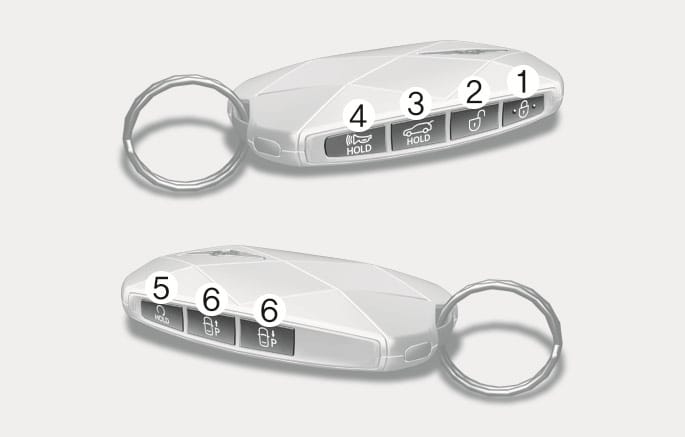
2C_SmartKeyOverview
- Door lock
- Door unlock
- Liftgate open/close
- Panic
- Remote start
- Remote Smart Parking Assist (Forward/Backward) (if equipped)
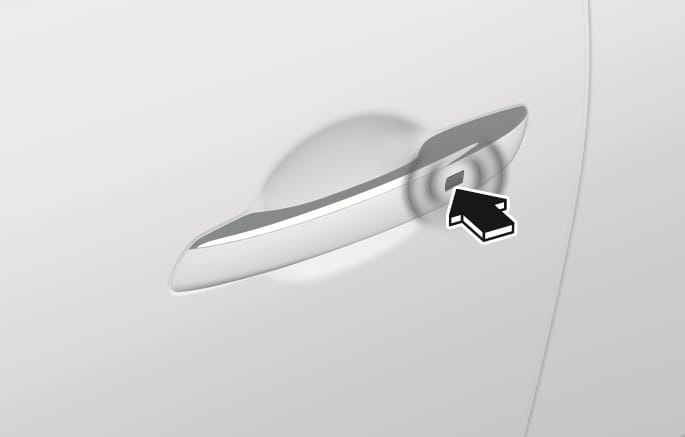
2C_OutsideDoorHandleTouch
To lock:
-
Close all doors, hood, and liftgate.
-
Have the smart key with you.
-
Touch the door handle touch sensor or press the Door lock button (1) on the smart key. The hazard warning lights blink.
-
Make sure the doors are locked by pulling the door handle.
-
The side view mirror will fold if On Door Unlock is selected from the Settings menu in the infotainment system. Select:
-
Setup > Vehicle > Lights > Welcome Mirror > On Door Unlock
-
-
The door handle touch sensor only operates when the smart key is within 40 in. (1 m) from the outside door handle.
-
If you lock the doors using the door handle button or touch sensor, the doors are not locked under the following circumstances:
-
The smart key is in the vehicle.
-
The Engine Start/Stop button is in the ACC or ON position.
-
Any door is open.
If this occurs, a chime sounds for a few seconds. Check the vehicle before attempting to lock the vehicle again.
-
If the smart key is not recognized, the touch sensor will not work. For more information, refer to the "Smart key precautions" section in this chapter.
Do not leave the Smart Key in your vehicle with children that are unattended or unsupervised. Children could unintentionally press the Engine Start/Stop button or could operate the power windows or other vehicle controls or even cause the vehicle to move. This may result in serious injury or death.
2C_OutsideDoorHandleTouch_2
To unlock:
-
Have the smart key with you.
-
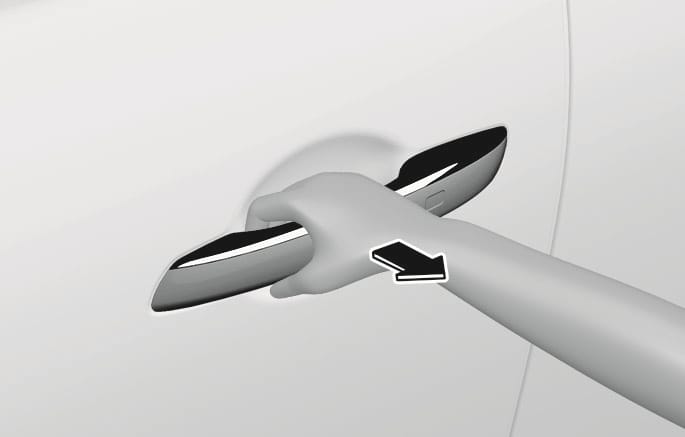
Put your hand in the door handle or press the Door unlock button (2) on the smart key. All doors unlock and the hazard warning lights blink two times.
To unlock your vehicle using the door handle touch sensor or the Smart Key:
-
Make sure you have the smart key in your possession.
-
Put your hand in the door handle or press the Door Unlock button (2) on the smart key.
-
The driver’s door will unlock.
-
If you touch the door unlock sensor inside of the front door handle to unlock the doors within 4 seconds, all of the doors will unlock. When the doors unlock, the hazard warning lights will blink two times and the chime will sound.
-
After unlocking the doors, the doors will automatically re-lock after 30 seconds unless a door is opened.
Two Press Unlock Feature
The priority for unlocking the driver door only, or unlocking all the doors with one press may be adjusted in the Settings menu in the infotainment system.
The Two Press Unlock feature, when enabled, will require the user to press the door unlock button once for driver door only and twice for unlocking all the doors.
-
Setup > Vehicle > Door > Two Press Unlock
The Two Press Unlock feature can also be enabled or disabled by pressing the door lock and unlock buttons simultaneously on the Key:
Press and hold both the Door Lock button and the Door Unlock button simultaneously until the hazard warning lights blink.
This will enable or disable the Two Press Unlock feature. Repeat this procedure to enable/disable the mode again.
-
If you press the front passenger outside door handle with the smart key in your possession, all the doors will unlock.
-
The Two Press Unlock feature is off when the vehicle is first delivered. To use the feature, enable the feature from the Settings menu in the infotainment system.
-
The side view mirror will unfold if On Door Unlock is selected from the Settings menu in the infotainment system. Select:
-
Setup > Vehicle > Lights > Welcome Mirror > On Door Unlock
-
-
The door handle touch sensor only operates when the smart key is within 40 in. (1 m) from the outside door handle.
-
After unlocking the doors, the doors are locked automatically after 30 seconds unless a door is opened.
-
The infotainment system may change after software updates. For more information, refer to the infotainment system manual.
Setting the door lock/unlock prevention feature
The doors may lock or unlock if the touch sensor of the outer door handle is recognized while washing your car or due to heavy rain.
To prevent unintentional door lock or unlock, press the lock button on the smart key and immediately press the unlock button along with the lock button for more than 4 seconds. The hazard warning lights blink four times.
At this time, the doors are not lock or unlock even though the touch sensor is touched on the outside door handle.
To deactivate the function, press the door lock or unlock button on the smart key.
-
During a car wash or rain, in order to minimize unintentional operation of the touch sensor, the touch sensor may become insensitive. This is not a malfunction.
-
The doors may not lock or unlock in the following situations.
-
If the touch sensor is touched with gloves on
-
If the door is suddenly approached
-
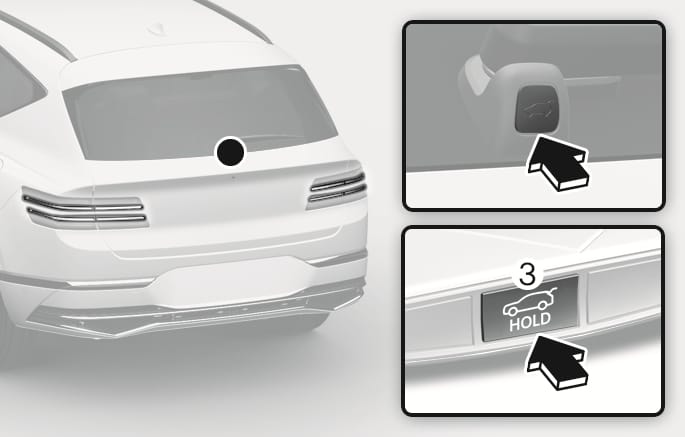
2C_PowerTailgateOpen
To open the liftgate:
-
Have the smart key with you.
-
Press the liftgate open/close button on the vehicle or press and hold the Liftgate open/close button (3) on the smart key for more than one second. The hazard warning lights blink two times and the liftgate opens.
The liftgate open/close button only operates when the smart key is within 40 in. (1 m) from the liftgate.
Press and hold the Panic button (4) for more than one second. The horn sounds and hazard warning lights will blink for about 30 seconds. To cancel the panic mode, press any button on the Smart Key.
To start the vehicle remotely:
-
Press the door lock button on the smart key within about 32 feet (10 m) from the vehicle.
-
Press and hold the Remote start button (5) on your smart key within 4 seconds from when you have pressed the door lock button. The engine starts.
-
To turn off the engine, press the Remote start button (5) once.
-
The vehicle must be in P (Park) for the remote start function to start.
-
The engine turns off if you get inside the vehicle without a registered smart key.
-
The engine turns off if you do not get inside the vehicle within 10 minutes after remotely starting the vehicle.
-
The Remote start button (5) may not operate if the smart key is not within 32 feet (10 m) from the vehicle.
-
The vehicle does not remotely start if the engine hood or liftgate is open.
-
Do not idle the engine for a long time.
-
Do not operate remote start in closed areas where there is no adequate ventilation for the engine exhaust.
Some models are equipped with the Remote Smart Parking Assist feature. With the smart key, the vehicle can be moved forward or backward remotely using the Forward or Backward button (6) on the smart key.
For more information, refer to the "Remote Smart Parking Assist 2 (RSPA 2)" section in chapter 7.
Your vehicle is equipped with a Engine Start/Stop button instead of a key cylinder. You can leave your smart key in your pocket or purse when you start your vehicle.
For more information, refer to the "Engine Start/Stop Button" section in chapter 6.
If the smart key is not moved for some time, the detection function for smart key operation will pause. Lift the smart key to activate the detection function again.
To prevent damaging the smart key:
-
Keep the smart key in a cool, dry place to avoid damage or malfunction. Exposure to moisture or high temperature may cause the internal circuit of the smart key to malfunction. This may not be covered under warranty.
-
Avoid dropping or throwing the smart key.
-
Protect the smart key from extreme temperatures.
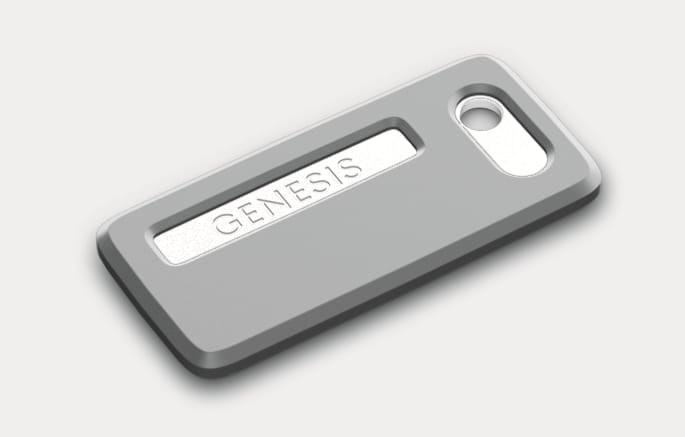
If the smart key does not operate normally, you can lock or unlock the driver's door by using the mechanical key.
2C_EmergencyKey
-
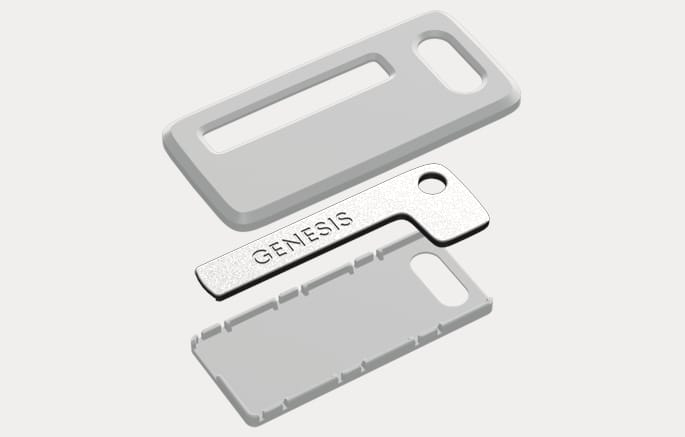
Press the GENESIS text section of the Mechanical key to remove the case.
-
Remove the mechanical key from the case.
2C_ReplaceEmergencyKey
-
After use, reinstall the mechanical key in the reverse order of removal.
A maximum of two smart keys can be registered to a single vehicle. If you happen to lose your smart key, immediately take the vehicle and remaining keys to your authorized retailer of Genesis Branded products or tow the vehicle, if necessary.
The smart key may not work if any of the following occur:
-
The smart key is close to a radio transmitter such as radio station or airport that may interfere with normal operation of the transmitter.
-
The smart key is near a mobile two way radio system or a mobile phone.
-
Another vehicle's smart key is being operated close to your vehicle.
-
If your windows are tinted, especially with metallic window tint, it may cause frequency interference, reducing the smart key operating range.
-
The vehicle battery is discharged.
-
Connecting an external device to the power outlet and placing the smart key near the external device.
-
Make sure the smart key battery is inserted in the correct polarity before use. Using an improperly positioned battery may cause smart key failure or premature discharge of the battery.
If the smart key does not work correctly, open and close the door with the mechanical key. To start the engine, press the Engine Start/Stop button directly with the smart key. If you have a problem with the smart key, contact an authorized retailer of Genesis Branded products.
If the smart key is in close proximity to your mobile phone, the signal could be blocked by your mobile phone's normal operational signals. This is specifically relevant when the phone is active such as making and receiving calls, text messaging, and/or sending/receiving emails. If possible, avoid keeping the smart key and your mobile phone in the same location such as pants or jacket pocket to avoid interference between the two devices.
-
Keep the smart key away from electromagnetic materials that blocks electromagnetic waves to the key surface.
-
Always have the smart key with you when leaving the vehicle. If the smart key is left near the vehicle, the vehicle battery may be discharged.
This device complies with Part 15 of the FCC rules. Operation is subject to the following three conditions:
-
This device may not cause harmful interference, and
-
This device must accept any interference received, including interference that may cause undesired operation.
-
Changes or modifications not expressly approved by the party responsible for compliance could void the user’s authority to operate the device.
If the smart key is not working properly, replace the battery.
Battery Type: CR2450
To replace the battery:
-
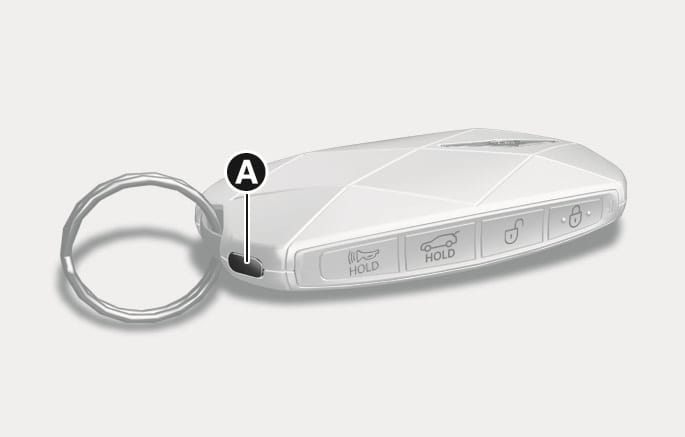
Press the button [A] to remove the keyring fixed appliance.
2C_RemoveSmartKeyCover
-
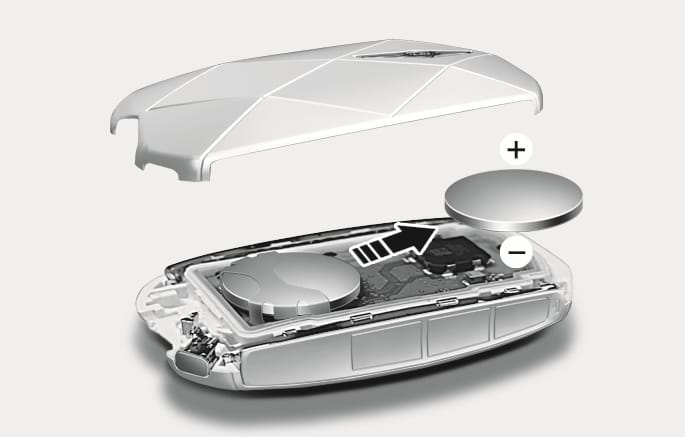
Insert a flat head screwdriver into the inner groove to remove the smart key cover.
-
Remove the old battery.
2C_ReplaceSmartKeyBattery
-
Install a new battery and reinstall the smart key cover in the reverse order of removal. Make sure the battery position is correct. An improperly positioned battery may discharge the battery, causing smart key failure.
If you suspect your smart key might have sustained some damage, or you feel your smart key is not working correctly, contact an authorized retailer of Genesis Branded products.
This product contains a button battery.
If swallowed, a lithium button battery can cause severe or fatal injuries within 2 hours. Keep batteries out of reach of children.
If you think batteries may have been swallowed or placed inside any part of the body, seek immediate medical attention.
An inappropriately disposed battery may be harmful to the environment and human health. Always dispose used batteries in accordance with local law(s) or regulations.