Remote Smart Parking Assist operation
|
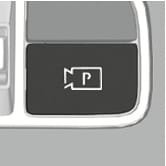
Parking/View button |
Smart key |
|
|
|
|
|
Location |
Name |
Symbol |
Description |
|
Smart key |
Remote Start button |
|
|
|
Forward button |
|
|
|
|
Backward button |
|
Operating order
1. Getting ready to remotely move forward and backward
There are two ways to operate the Remote Operation function.
Method (1) Using the function with engine off.
-
Within a certain range from the vehicle press the door lock (
Č ) button on the smart key and lock all doors.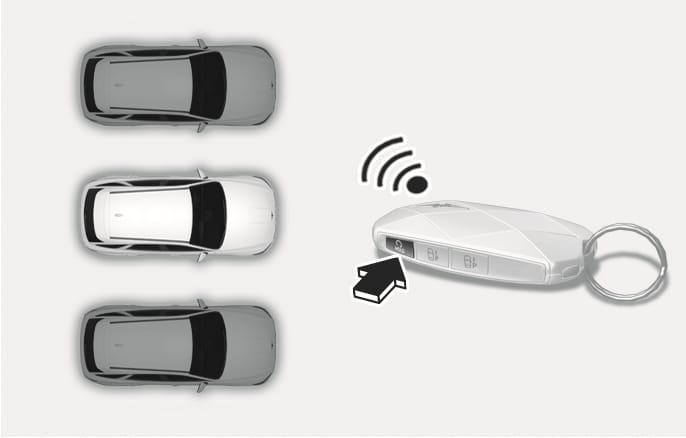
2C_RSPARemoteForwardRewardPrecedure
-
Press and hold the Remote Start (
Ĕ ) button within 4 seconds until the engine starts.
For more information on remotely starting the engine, refer to the "Remote start" section in chapter 6.
2C_RemoteForwardRewardProcedure_2
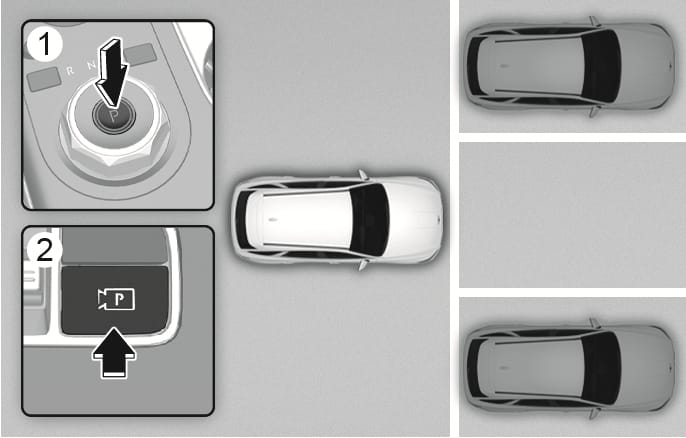
Method (2) Using the function with engine on.
-
Park the vehicle in front of the space where you want to use the Remote Operation function, and shift the gear to P (Park).
-
Press and hold the Parking/View (
Ă ) button to turn on Smart Parking Assist.The "Under Remote Control" message appears on the infotainment system screen.
-
Get out of the vehicle with the smart key and close all doors and tailgate.
-
Agree must be selected on the infotainment system and the infotainment system has to operate properly to use the Remote Operation function.
-
Method (2) can be used after the vehicle has been driven above 5 km/h (3 mph).
-
If the function is turned on again after perpendicular parking is completed by Remote Smart Parking Assist, Remote Operation function can be used with Method (2).
-
Check that all smart keys are outside the vehicle when using Remote Operation function. If a smart key is inside the vehicle, the Remote Operation function does not work.
2. Remotely moving forward and backward
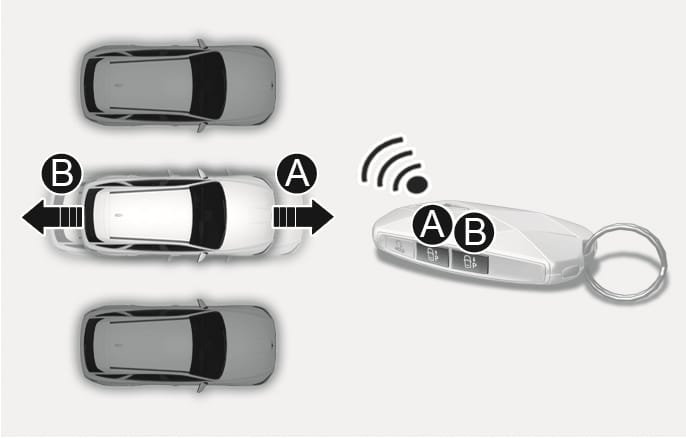
2C_RSPARemoteForwardRewardPrecedure_2
- Forward
- Backward
-
Press and hold the Forward (
đ ) or Backward (Į ) button on the smart key.-
Remote Smart Parking Assist automatically controls the steering wheel, vehicle speed, and gearshift. Your vehicle moves in the direction of the button pressed.
-
If you do not hold down the Forward (
đ ) or Backward (Į ) button, your vehicle stops and function control pauses. The function starts operating again when the button is pressed and held again.
-
-
When your vehicle reaches the target location, release the smart key Forward (
đ ) or Backward (Į ) button. -
Get in your vehicle with the smart key or press the Remote Start (
Ĕ ) button on the smart key from outside the vehicle.-
A message appears informing you that remotely moving your vehicle forward or backward is complete on the infotainment system screen. The gear is shifted to P (Park) and the EPB is applied.
-
The engine remains on if you are in the vehicle. The engine turns off if you press the Remote Start (
Ĕ ) button.
-
-
Check that all smart keys are outside your vehicle before using the Remote Operation function.
-
Remote Operation function operates only when the smart key is within 4 m (13 ft.) from your vehicle. If there is no vehicle movement even when the Forward or Backward button is pressed on the smart key, check the distance from the vehicle and press the button again.
-
The detection range of the smart key may differ depending on radio waves in the area such as transmission towers or broadcast stations.
-
When remotely moving forward using Method (1), it is intended to be a departure scenario, and your vehicle moves 4 m (13 ft.) to check for pedestrians, animals, or objects around your vehicle. Your vehicle makes small steering changes when driving forward.
-
When remotely moving forward using Method (2), it is recognized as a parking situation, and immediately controls the steering wheel depending on the condition ahead to assist with entering the parking space and aligning your vehicle. The function performance may be reduced depending on the pedestrians, animals, and objects near your vehicle or other factors.
-
When moving remotely backward, both Method (1) and (2) align the steering wheel and then only move your vehicle in a straight path.
-
When using Remote Operation function, make sure all passengers have exited your vehicle and are standing in a safe location away from your vehicle.
-
If your vehicle’s battery is discharged or Remote Smart Parking Assist malfunctions when parked in a narrow parking space, the Remote Operation function does not operate. Always park your vehicle in a space wide enough for you to get in or out of your vehicle.
-
Depending on the parking space or the movement of other vehicle after you have parked, you may not be able to exit from the space using the Remote Operation function.
-
Before leaving your vehicle, close the windows and sunroof. Make sure the engine is off before locking the doors.
Remote Operation function operation status
|
Operation status |
Smart key LED |
|
Under control |
Green LED continuously blinks |
|
Pause |
Red LED continuously blinks |
|
Off |
Red LED illuminates for 4 seconds and then turns off |
|
Complete |
Green LED illuminates for 4 seconds and then turns off |
If the smart key is not within the operating range from the vehicle (about 4 m (13 ft.)), the smart key LED does not illuminate or blink. Use the smart key within the operating range.
How to turn off Remote Operation function while operating
-
Press the Parking/View (
Ă ) button while the infotainment system guides you using method 2. -
Shift the gear except to P (Park) while the infotainment system guides you using method 2.
-
Press the Parking Safety (
Ā ) button or select Cancel on the infotainment system. -
Press the Remote Start (
Ĕ ) button on the smart key while the vehicle is being controlled by Remote Operation function. Remote Operation function and the engine turn off. -
Get on your vehicle with the smart key. Remote Operation function turns off and the engine remains on.
The function pauses in the following conditions when:
-
There is a pedestrian, animal, or object detected in the direction your vehicle is moving.
-
The door or tailgate is open.
-
The Forward (
đ ) or Backward (Į ) button is not continuously pressed. -
Multiple buttons are pressed simultaneously on a smart key.
-
The smart key is not operated within 4 m (13 ft.) from your vehicle.
-
A button on another smart key is pressed in addition to the operating smart key.
-
Parking Collision-Avoidance Assist or Rear Cross-Traffic Collision-Avoidance Assist operates when your vehicle is backing while remotely controlled.
-
Your vehicle moves about 7 m (22 ft.) while the smart key button is pressed with Remote Operation function (maximum travel distance per button press).
The function cancels in the following conditions when:
-
The steering wheel is turned.
-
The gear is shifted while your vehicle is moving.
-
EPB (Electronic Parking Brake) is operating while the vehicle is moving.
-
The engine hood is opened.
-
The brake pedal or accelerator pedal is depressed when all the doors are closed.
-
The smart key is outside your vehicle when the brake pedal is depressed while the driver's door is open.
-
Rapid acceleration occurs.
-
Vehicle skid occurs.
-
An obstacle prevents the wheel from moving.
-
About 3 minutes and 50 seconds have passed since Remote Operation function was initiated.
-
The slope of the road exceeds the operational range.
-
The function is paused for more than 1 minute.
-
The total travel distance of your vehicle has exceeded about 14 m (45 ft.) after Remote Operation function is operated.
-
The steering wheel, gearshift, braking, and drive controls are not working properly.
-
There is a problem with the smart key or the smart key battery is low.
-
ABS, TCS or ESC system operates due to slippery road conditions.
-
Theft Alarm System sounds.
-
When Remote Operation function is canceled, your vehicle automatically stops, shifts the gear to P (Park), and applies EPB (Electronic Parking Brake).
Operating order
Parking function operates in the following order:
-
Getting ready for parking
-
Searching for parking space
-
Select parking type and operating mode
-
Smart Parking
-
Remote Parking
-
Parking function includes Smart Parking and Remote Parking.
-
1. Getting ready for parking
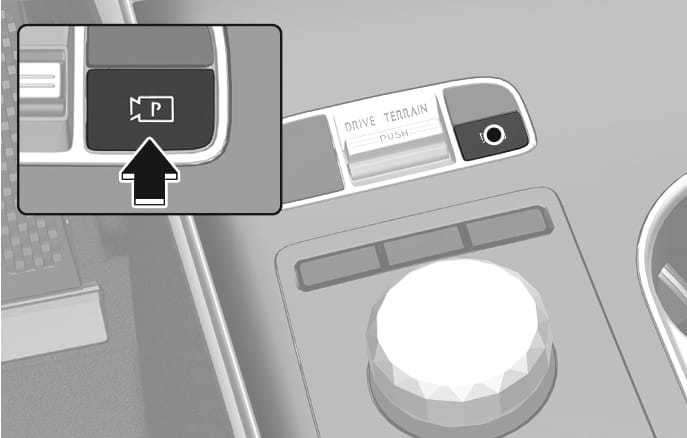
2C_ParkingViewButton_1
-
With the engine on, depress the brake pedal and shift the gear to D (Drive) or N (Neutral).
-
Press and hold the Parking/View (
Ă ) button to turn on Remote Smart Parking Assist.
-
Agree must be selected on the infotainment system screen and the infotainment system has to operate properly to use Parking function.
-
If you drive above 5 km/h (3 mph) with the engine on, you may use the Parking function with the gear shifted to N (Neutral).
2. Searching for parking space
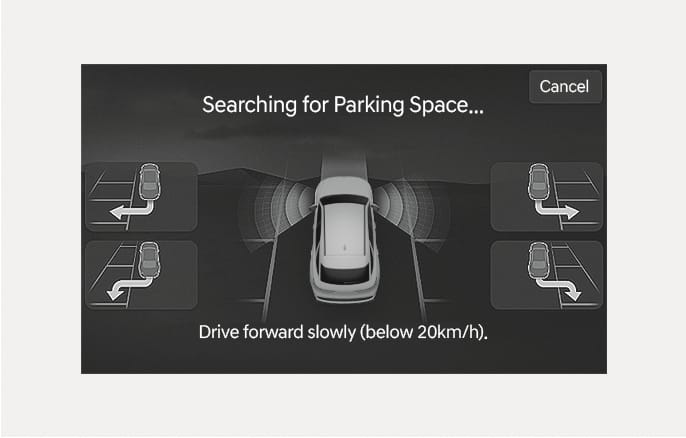
2C_ParkingSpaceSearch
-
Slowly drive forward maintaining the distance of about 100 cm (40 in.) from the parked vehicles.
-
When searching for a parking space is complete, a message appears informing you that searching for a parking space is complete.
-
Select Parking Type appears on the infotainment system screen and the selected parking space appears on Top View screen of Surround View Monitor.
-
-
Remote Smart Parking Assist searches for parking lines or parking spaces that are next to parked vehicles, or parking spaces with parked vehicles in front or rear.
-
While searching for a parking space, when the vehicle speed is above 20 km/h (12 mph), a message appears on the infotainment system screen informing you to slow down. When vehicle speed is above 30 km/h (18 mph), Parking function turns off.
-
Searching for a parking space is completed when there is enough space to move the vehicle in addition to the parking space.
-
Even if you are informed that searching for a parking space is complete, Remote Smart Parking Assist may search for a parking space again depending on surroundings.
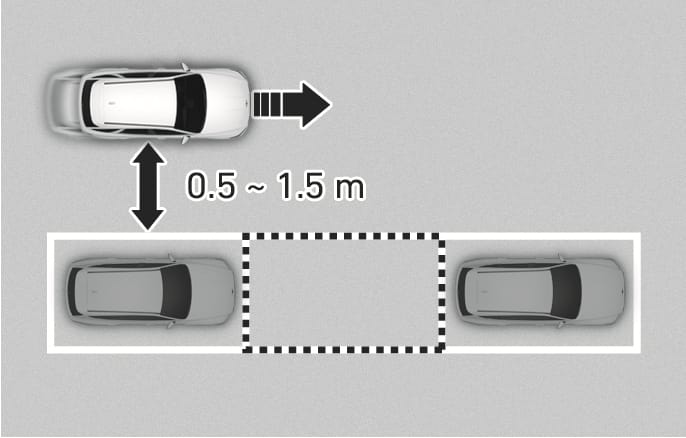
2C_ParkingSpaceSearchRange
-
If the distance is below 50 cm (20 in.) or over 150 cm (59 in.), Remote Smart Parking Assist may not search for a parking space.
-
If you do not maintain a certain distance from the parked vehicle, the performance to search for a parking space may reduce.
-
Due to abnormal performance of the ultrasonic sensor or the influence of the surroundings, Parking function may not be able to search for a parking space even if there is a parking space, or may search for a space that is not suitable for parking.
-
If the parking space is on a incline or if your vehicle is not straight when searching for a parking space, the parking type displayed may be different from the actual parking type which should be selected. If this occurs, do not select the parking type, and search for another parking space.
3. Select parking type and operating mode
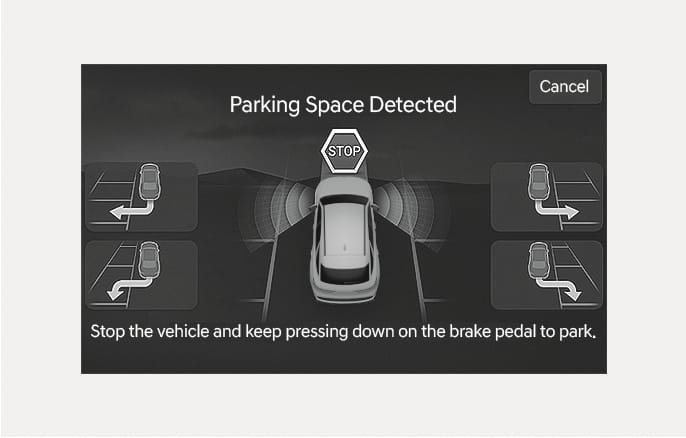
2C_SelectParkingTypeAndFunction
(1) Parking type - Perpendicular reverse (Left/Right), Parallel reverse (Left/Right), Diagonal reverse (Left/Right)
With the vehicle stopped by depressing the brake pedal, select parking type.
-
If you continue to drive without stopping after the parking type selection screen appears, Remote Smart Parking Assist returns to the previous stage and searches for a parking space.
-
If the Parking function is canceled unintentionally by pressing the Parking/View (
Ă ) button before the parking type is selected, you can return to the parking type selection stage by pressing and holding the button again while the vehicle is stopped.
Before selecting the Parking type, you should check whether the parking space is suitable.
If the searched parking space is narrow or unsuitable for parking, do not select the Parking type and move the vehicle to search for another parking space.
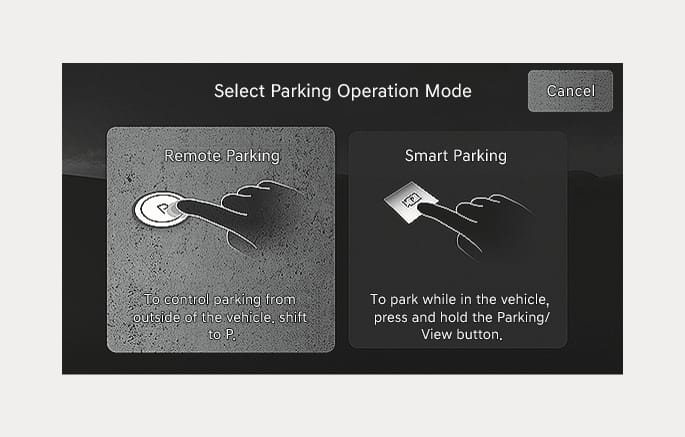
2C_SmartParkingFunctionOperationGuide
(2) Operating mode - Remote Parking, Smart Parking
After selecting a parking type, the infotainment system screen guides you with Remote Parking function and Smart Parking function. Follow the instructions to operate Remote Smart Parking Assist.
-
Operating instructions is displayed on the screen for each desired function you select.
-
Do not take your foot off the brake pedal during the Parking function guide. When the vehicle moves, Remote Smart Parking Assist turns off.
-
If Remote Smart Parking Assist cannot activate Remote Parking function, only the Smart Parking guide is displayed on the infotainment system screen.
4. Smart Parking
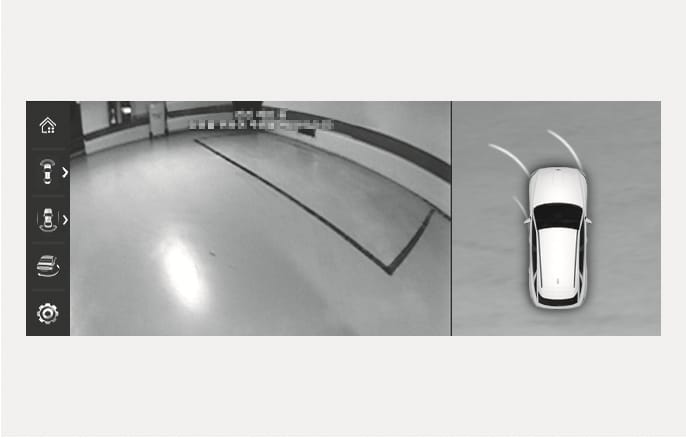
2C_SmartParking
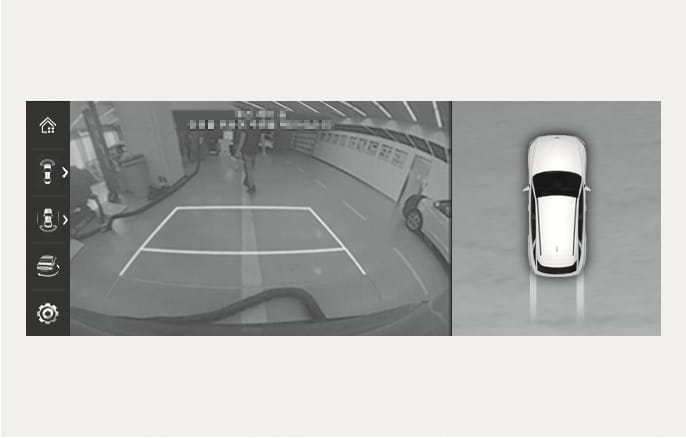
2C_SmartParking_1
-
Press the Parking/View (
Ă ) button when the vehicle is stopped by depressing the brake pedal. When the brake pedal is released, Remote Smart Parking Assist automatically controls the steering wheel, vehicle speed, and gearshift.-
While Smart Parking function is operating, if you do not hold down the Parking/View button, the vehicle stops and function control pauses. The function starts operating again when the Parking/View button is pressed and held again.
-
When the vehicle reaches the target parking position, a message appears informing you that parking your vehicle is complete on the infotainment system screen.
-
-
Smart Parking function does not operate if the door is open or the seat belt is not fastened.
-
The parking location indicator is displayed on the Surround View Monitor screen and is displayed until the vehicle enters the parking space for the first time by the Smart Parking function.
-
Vehicle speed can be adjusted by depressing the brake pedal while Smart Parking function is operating. The vehicle does not accelerate even when the accelerator pedal is depressed.
-
Depending on parking environments, if the vehicle is stopped by a stopper, parking may be completed.
-
If you need to change the vehicle's position or location, manually complete parking your vehicle.
5. Remote Parking
2C_RemoteSmartParking
-
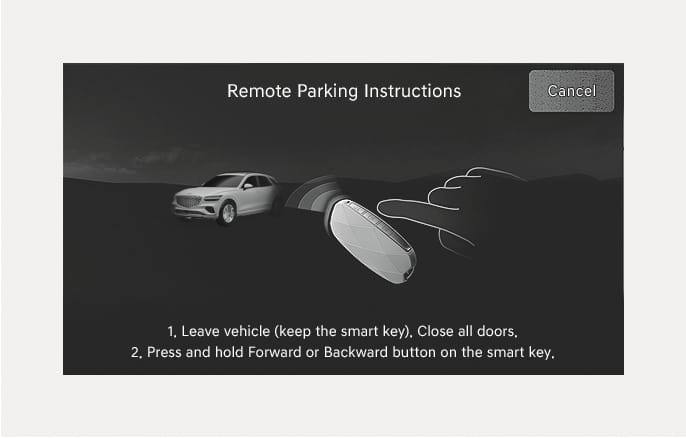
Shift the gear to P (Park), get out of your vehicle with the smart key and close all doors.
-
Press and hold the Forward (
đ ) or Backward (Į ) button on the smart key.Remote Smart Parking Assist automatically controls the steering wheel, vehicle speed, and gearshift. Your vehicle moves in the direction of the button pressed.
If you do not hold down the Forward (
đ ) or Backward (Į ) button, your vehicle stops and function control pauses. The function starts operating again when the button is pressed and held again.
-
When your vehicle reaches the target location, release the smart key Forward (
đ ) or Backward (Į ) button.-
A message appears informing you that parking your vehicle is complete on the infotainment system screen. The gear is shifted to P (Park) and the EPB is applied.
-
-
Check that all smart keys are outside your vehicle before using the Remote Parking function.
-
Remote Parking function only operates when the smart key is within 4 m (13 ft.) from your vehicle. If there is no vehicle movement even when the Remote Forward or Backward button is pressed on the smart key, check the distance to the vehicle and press the button again.
-
The detection range of the smart key may differ depending on radio waves in the area such as transmission towers or broadcast stations.
-
The parking location indicator is displayed on the Surround View Monitor screen and is displayed until the vehicle enters the parking space for the first time by the Remote Parking function.
-
Depending on parking environments, if the vehicle is stopped by a stopper, parking may be completed.
-
If you need to change the vehicle's position or location, manually complete parking your vehicle.
-
When using Remote Parking function, make sure all passengers have exited your vehicle and are standing in a safe location away from your vehicle.
-
Before leaving your vehicle, close the windows and sunroof. Make sure the engine is off before locking the doors.
-
Smart Parking function
Operation status
Turn signal
Under control
The turn signal of the parking direction blinks until the first reverse is complete.
-
Remote Parking function
Operation status
Smart key LED
Turn signal
Under control
Green LED continuously blinks
The turn signal of the parking direction blinks until the first reverse is complete.
Pause
Red LED continuously blinks
-
Off
Red LED illuminates for 4 seconds and then turns off
-
Complete
Green LED illuminates for 4 seconds and then turns off
-
If the smart key is not within the operating range from the vehicle (about 4m (13 ft.)), the smart key LED does not illuminate or blink. Use the smart key within the operating range.
-
Press the Parking/View (
Ă ) button in the following stage:-
Searching for parking space
-
Select parking type
-
-
Shift the gear to R (Reverse) in the following stage:
-
Searching for parking space
-
Select parking type
-
Select operating mode
-
-
Press the Parking Safety (
Ā ) button or select Cancel on the infotainment system screen to turn off Parking function. -
While Smart Parking function is operating:
-
If the vehicle is stopped by depressing the brake pedal, and the gear is shifted, Parking function turns off. At this time, EPB (Electronic Parking Brake) is not applied.
-
-
While Remote Parking function is operating:
-
Press the Remote Start (
Ĕ ) button on the smart key. Parking function turns off. -
Get on the vehicle with the smart key. Parking function turns off. At this time, the vehicle remains on.
-
-
Smart Parking
-
There is a pedestrian, animal, or object in the direction your vehicle is moving.
-
The door or tailgate is open.
-
The driver’s seat belt is not fastened.
-
Parking Collision-Avoidance Assist or Rear-Cross Traffic Collision-Avoidance Assist operates when your vehicle is backing while remotely controlled.
-
The Parking/View (
Ă ) button is not continuously pressed. -
The vehicle is stopped by depressing the brake pedal.
-
-
Remote Parking
-
There is a pedestrian, animal, or object in the direction your vehicle is moving.
-
The door or tailgate is open.
-
The Forward (
đ ) or Backward (Į ) button is not continuously pressed. -
Multiple buttons are pressed simultaneously on a smart key.
-
The smart key is not operated within 4 m (13 ft.) from your vehicle.
-
A button on another smart key is pressed in addition to the operating smart key.
-
Parking Collision-Avoidance Assist or Rear-Cross Traffic Collision-Avoidance Assist operates when your vehicle is backing while remotely controlled.
-
When Parking function is paused, the vehicle will automatically stop. If the condition that made the function to pause disappears, the function may operate again.
-
Smart Parking
-
The steering wheel is turned.
-
The gear is shifted while your vehicle is moving.
-
EPB (Electronic Parking Brake) is operating while your vehicle is moving.
-
The hood is open.
-
The driver's door is open with the seat belt unfastened.
-
Rapid acceleration occurs.
-
Vehicle skid occurs.
-
An obstacle prevents the wheel from moving.
-
There are pedestrians, animals, or objects at the front and rear of the vehicle at the same time.
-
About 3 minutes and 50 seconds have passed since Smart Parking function was initiated.
-
The slope of the road exceeds the operational range.
-
The function is paused for more than 1 minute.
-
The steering wheel, gearshift, braking, and drive controls are not working properly.
-
ABS, TCS, or ESC system operates due to slippery road conditions.
-
When Smart Parking function is canceled, your vehicle automatically stops, shifts the gear to P (Park), and applies EPB (Electronic Parking Brake).
-
Remote Parking
-
The steering wheel is turned.
-
The gear is shifted.
-
EPB (Electronic Parking Brake) is operating while your vehicle is moving.
-
The hood is open.
-
The brake pedal or accelerator pedal is depressed when all the doors are closed.
-
The smart key is outside the vehicle when the brake pedal is depressed while the driver's door is open.
-
Rapid acceleration occurs.
-
Vehicle skid occurs.
-
An obstacle prevents the wheel from moving.
-
There are pedestrians, animals, or objects at the front and rear of the vehicle at the same time.
-
About 3 minutes and 50 seconds have passed since Remote Parking function was initiated.
-
The slope of the road exceeds the operational range.
-
The function is paused for more than 1 minute.
-
The steering wheel, gearshift, braking, and drive controls are not working properly.
-
There is a problem with the smart key or the smart key battery is low.
-
ABS, TCS, or ESC system operates due to slippery road conditions.
-
Theft Alarm System sounds.
-
When Remote Parking function is canceled, your vehicle automatically stops, shifts the gear to P (Park), and applies EPB (Electronic Parking Brake).
Operating order
Smart Exit function operates in the following order:
-
Getting ready for exit
-
Checking space
-
Select exit direction
-
Smart Exit
1. Getting ready for exit
-
With the engine on, depress the brake pedal and shift the gear to P (Park) or N (Neutral).
-
Press and hold the Parking/View (
Ă ) button to turn on Remote Smart Parking Assist.
2C_ParkingViewButton_1
-
Agree must be selected on the infotainment system screen and the infotainment system has to operate properly to use Smart Exit function.
-
Drive below 5 km/h (3 mph) with the engine on and shift the gear to N (Neutral), Smart Exit function can be used.
-
If the function is turned on again after parallel parking is completed by Remote Smart Parking Assist, Smart Exit function can be used.
2. Checking space
2C_ExitSpaceSearch
-
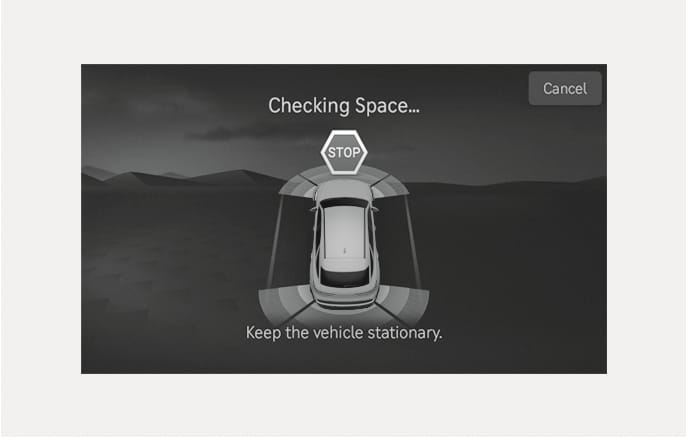
When the vehicle is stopped by depressing the brake pedal, the vehicle sensors detect the distance from nearby objects and check for space to exit.
-
When checking for space is complete, a message appears informing you that searching for a parking space is complete.
-
-
While checking for space, if there is a collision risk with pedestrian, animal, or object in the direction of vehicle exit, for your safety, Smart Exit function can be turned off.
-
Even if check for space is completed, objects in the blind spot area cannot be detected by the sensors. The driver must directly check the blind spot area and continue using the function.
Due to abnormal performance of the ultrasonic sensor or the influence of the surroundings, Smart Exit function may not search for a exit space even if there is a exit space, or may search for a space that is not suitable for exiting.
3. Select exit direction
2C_SelectDepartureDirection
-
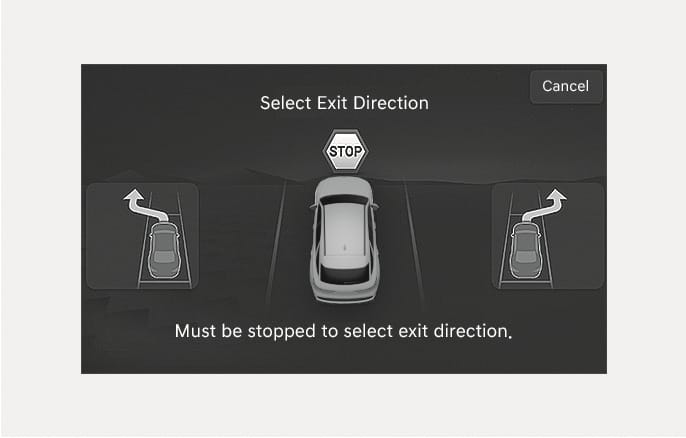
With the vehicle stopped by depressing the brake pedal, the infotainment system screen displays the possible directions for parallel exit.
-
Touch the infotainment system screen or use the central controller to select the desired exit direction.
-
Before selecting the Exit Direction, the driver should check whether the space for exit is suitable.
-
If the searched exit space by Remote Smart Parking Assist is narrow or unsuitable (surrounding vehicles are parked vertically, etc.), do not use the Smart Exit function.
4. Smart Exit
2C_SmartExit
-
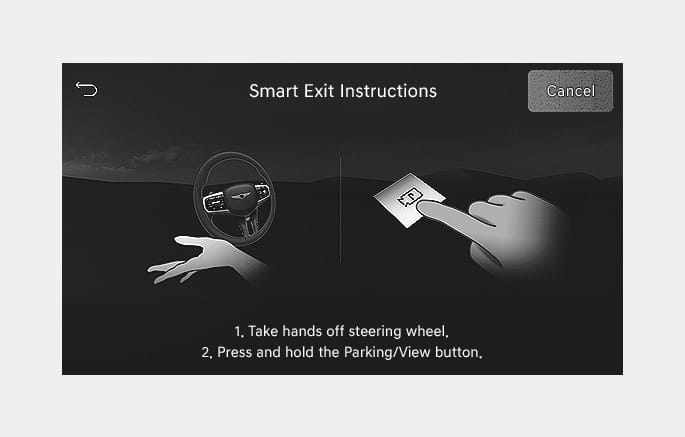
Press the Parking/View (
Ă ) button when the vehicle is stopped by depressing the brake pedal. When the brake pedal is released, Remote Smart Parking Assist automatically controls the steering wheel, vehicle speed, and gearshift.-
While Smart Exit function is operating, if you do not hold down the Parking/View button, the vehicle stops and function control pauses. The function starts operating again when the Parking/View button is pressed and held again.
-
When the vehicle reaches the target exit location, a message appears informing you that parking your vehicle is complete on the infotainment system screen.
-
-
Smart Exit function does not operate if the door is open or the seat belt is not fastened.
-
Vehicle speed can be adjusted by depressing the brake pedal while Smart Exit function is operating. The vehicle does not accelerate even when the accelerator pedal is depressed.
-
If exit is completed while depressing the brake pedal, Smart Exit function is completed with the gear in D (Drive).
-
If exit is completed while depressing the accelerator pedal, you must take your foot off the accelerator pedal once for the accelerator pedal to operate.
-
If there is no vehicle operation such as depressing the brake pedal or accelerator pedal within 4 seconds after exit is complete, the vehicle automatically shifts to P (Park) and applies EPB (Electronic Parking Brake).
-
After Exit function is complete, always check the surroundings before driving.
|
Operation status |
Turn signal |
|
Under control |
The turn signal of the exit direction blinks until the exit is complete or Smart Exit is cancelled. |
How to turn off Smart function while operating
-
Press the Parking/View (
Ă ) button in the following stage:-
Checking space
-
Select exit direction
-
-
Shift the gear to R (Reverse) in the following stage:
-
Checking space
-
Select exit direction
-
-
Press the Parking Safety (
Ā ) button or select Cancel on the infotainment system screen to turn off Exit function. -
While Smart Exit function is operating, if the vehicle is stopped by depressing the brake pedal, and the gear is shifted, Exiting function turns off. At this time, EPB (Electronic Parking Brake) is not applied.
The function pauses in the following conditions when:
-
There is a pedestrian, animal, or object in the direction your vehicle is moving.
-
The door or tailgate is open.
-
The driver’s seat belt is not fastened.
-
Parking Collision-Avoidance Assist or Rear-Cross Traffic Collision-Avoidance Assist operates when your vehicle is backing while remotely controlled.
-
The Parking/View (
Ă ) button is not continuously pressed. -
The vehicle is stopped by depressing the brake pedal.
When Exit function is paused, the vehicle will stop. If the condition that made the function to pause disappears, the function may operate again.
The function cancels in the following conditions when:
-
Smart Exit
-
The steering wheel is turned.
-
The gear is shifted while the vehicle is moving.
-
EPB (Electronic Parking Brake) is operating while your vehicle is moving.
-
The hood is open.
-
The driver's door is open with the seat belt unfastened.
-
Rapid acceleration occurs.
-
Vehicle skid occurs.
-
An obstacle prevents the wheel from moving.
-
There are pedestrians, animals or objects at the front and rear of the vehicle at the same time.
-
About 3 minutes and 50 seconds have passed since Smart Exit function was initiated.
-
The slope of the road exceeds the operational range.
-
The function was paused for more than 1 minute.
-
The steering wheel, gearshift, braking, and drive controls are not working properly.
-
ABS, TCS, or ESC system operates due to slippery road conditions.
-
When Smart Exit function is canceled, your vehicle automatically stops, shifts the gear to P (Park), and applies EPB (Electronic Parking Brake).