Updating software
2C_OTACirmformProcessing_1
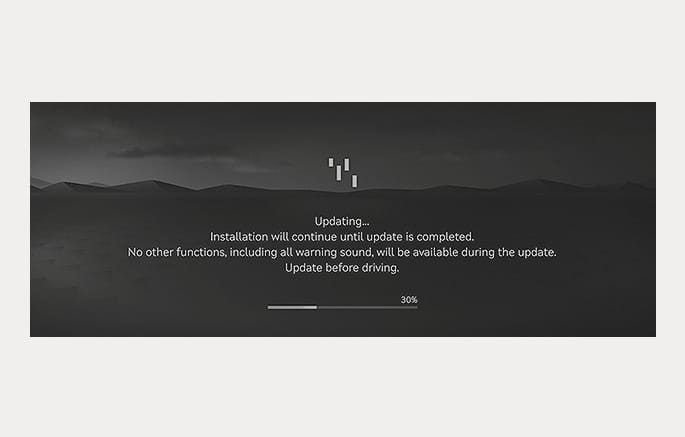
You can see the progress of the update on the screen.
After the update is complete, you will receive a notification on your phone, e-mail, or the vehicle screen that the software update is complete.
The screen turns off automatically after 3 minutes to save the battery. If the screen turns off automatically, you can check the update progress by pressing the Engine Start/Stop button.
-
After the update starts, you can exit the vehicle.
-
The update details may vary depending on the installed software version.
-
Check the notice for the OTA software update on the Genesis brand web.
-
If the update fails, the update recovery will automatically proceed. If you want to retry the software update, even after a successful recovery, we recommend you to contact Genesis.
-
If the update or recovery fails, we recommend that you contact Genesis Call Center.
-
After the update is complete, it may provide new functions or improvements. For more information, refer to the "OTA Software Update" page on the Genesis brand web.
-
Observe the following restrictions during the update.
-
You cannot use the vehicle during the update. Be sure to have enough time for the update, and safely park the vehicle before starting the update process.
-
You cannot use remote features, including remote start.
-
The Rear Occupant Alert feature may not work. Check if there are any occupants in the rear seat.
-
If there is an update for the Genesis Digital Key feature, the doors cannot be locked or unlocked using the digital key, or fingerprint recognition. If the Genesis Digital Key feature is being updated, use the smart key to lock or unlock the doors.
-
-
The update will be automatically canceled if any vehicle conditions required for the update are changed before starting the update.
-
Once the update has started, you cannot cancel the update.
-
You cannot use the OTA software update feature if you modify or replace any vehicle software.
-
Do not open the hood or replace the battery in the vehicle during the update. The update may fail.
-
If a diagnostic tool of any kind is connected to the vehicle OBD (On-Board Diagnostic) terminal, the vehicle cannot be updated. The vehicle can be updated by removing the diagnostic tool connected to the OBD terminal and then restarting the vehicle.
-
If the update is not complete successfully, we highly recommend that you contact Genesis.